

Download yFlicks – Video Organizer, Player & Library Manager
Overview
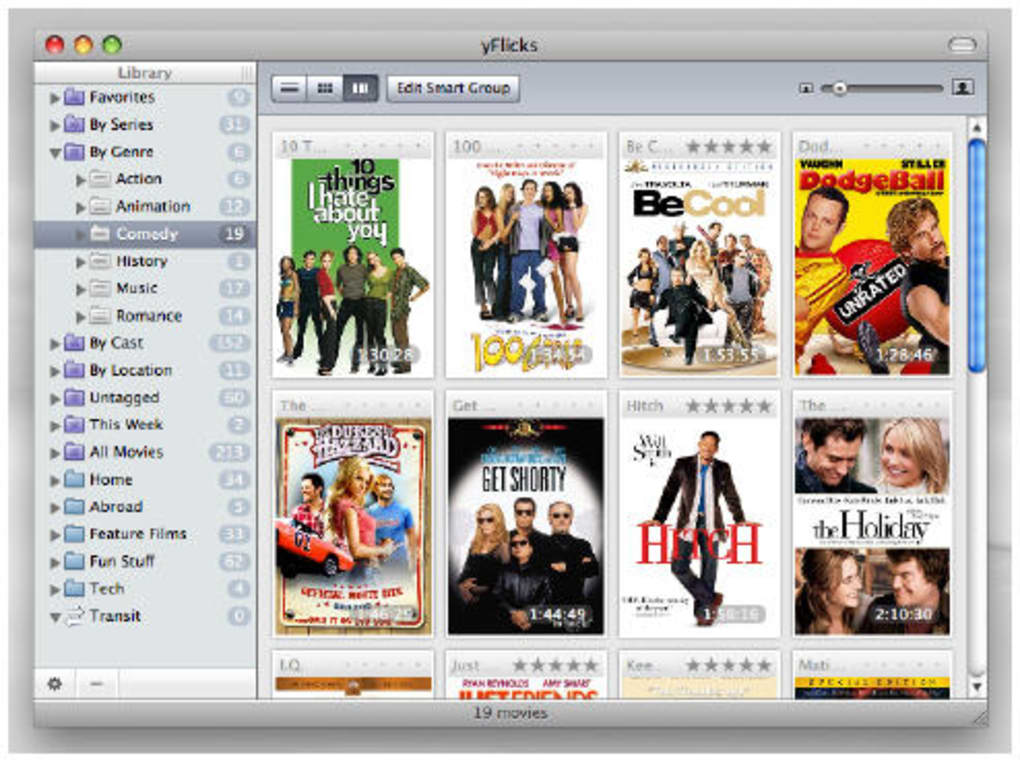
yFlicks is a purpose‑built desktop application that lets you take full control of your video collection. Whether you own a handful of indie movies, a massive library of TV‑show episodes, or a mixed bag of downloaded clips from YouTube and DailyMotion, yFlicks gives you a sleek, visual way to browse, preview, and play each title. The hallmark of the program is its **Front Row view**, a grid of high‑resolution cover images that scroll horizontally, mimicking the feel of a physical media shelf. Hover over any thumbnail and a quick preview starts automatically, letting you confirm the right file without opening a full player.
The user interface is intentionally uncluttered: navigation panes sit on the left, showing your custom lists, while the main window displays album‑style covers. A “glass” skin adds a translucent, modern look for users who prefer a more polished aesthetic. Beyond organization, yFlicks doubles as a capable video player. Full‑screen playback is smooth, and you can rate titles, tag them with genres, or group them into custom collections directly from the playback screen.
Integration with the Apple Remote makes yFlicks an ideal couch‑potato companion. One click on the remote can launch the Front Row view, scroll through titles, and start playback, allowing you to stay comfortably seated while you binge‑watch. Import tools let you pull videos from popular sharing platforms, and a built‑in exporter can sync selected movies to an iPod or other iOS devices, turning your mobile gadget into a portable cinema.
While yFlicks shines in visual browsing and remote control support, it does have two notable drawbacks. The library can become sluggish as the number of entries grows, leading to occasional lag when scrolling through large collections. Additionally, after purchasing the software you may experience a short waiting period before receiving your license key, which can be frustrating for users eager to start immediately. Despite these quirks, yFlicks remains a solid choice for anyone who values a beautiful, thumbnail‑driven way to manage and enjoy video files.
Key Features, Installation & First‑Time Use
- Front Row view with high‑resolution cover thumbnails.
- Instant hover preview for rapid content identification.
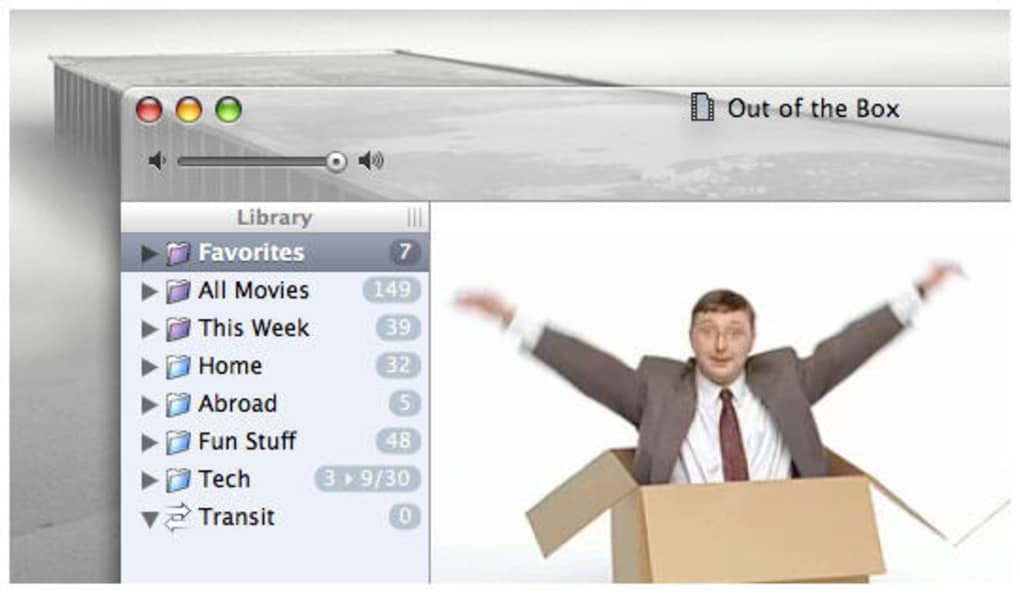
- Clear left‑hand navigation panels for custom playlists and categories.
- Optional glass interface for a modern, translucent look.
- Full‑screen playback with rating, tagging, and grouping capabilities.
- Apple Remote compatibility for hands‑free browsing and playback.
- Direct import from YouTube, DailyMotion, and other video‑sharing sites.
- Export function to sync movies with iPod and iOS devices.
- Support for multiple video formats including MP4, MKV, AVI, and MOV.
- Automatic metadata fetching for covers, descriptions, and release dates.
**Installation** – Getting yFlicks up and running is straightforward. After purchasing, you’ll receive a download link via email. Click the link to download the installer (approximately 45 MB). Run the .dmg file on macOS or the .exe file on Windows; the wizard guides you through standard steps: accept the license agreement, choose an installation folder, and click “Install.” Once the process completes, launch yFlicks and enter the license key you received.
**First‑time configuration** – On first launch, yFlicks prompts you to point the application to your video library folder. You can add multiple directories, allowing the software to index all supported files. The indexing process may take a few minutes depending on library size; yFlicks displays a progress bar and shows how many files have been scanned.
After indexing, the Front Row view appears automatically. Drag and drop folders onto the left‑hand pane to create custom collections such as “Family Movies,” “Documentaries,” or “Watch‑Later.” To customize the appearance, open **Preferences → Appearance** and toggle the “Glass Skin” option, choose thumbnail size, or select a dark/light theme. For remote users, enable **Apple Remote** under **Preferences → Remote**, then map the remote buttons to actions like “Next Cover,” “Play/Pause,” and “Rate.”
**Playing a video** – Click any cover to open the playback window, or simply hover over a thumbnail to see a 5‑second preview. While playing, the toolbar offers quick access to rating stars, a “Add to Group” button, and a “Full‑Screen” toggle. The player also supports subtitles (SRT, VTT) and audio track selection, making it suitable for multilingual content.
System Compatibility & Performance
yFlicks is primarily designed for macOS (10.12 Sierra and later) and Windows 10/11. The macOS version runs natively, taking advantage of Core Animation for the glass interface and offering tight integration with the Apple Remote via Bluetooth. The Windows build, while fully functional, relies on a compatibility layer that mirrors many macOS UI elements, ensuring a consistent experience across platforms.
**Hardware requirements** are modest: a dual‑core CPU (Intel i3 or equivalent), 4 GB of RAM, and at least 200 MB of free disk space for the application itself. Video playback performance depends on the codecs used; yFlicks leverages hardware acceleration on supported GPUs (Intel HD Graphics 4000+, NVIDIA GTX 600 series+, AMD Radeon HD 7000+). For high‑resolution 4K files, a more powerful GPU and 8 GB of RAM are recommended to avoid frame drops.
Despite the modest hardware needs, many users report noticeable lag when the library exceeds a few thousand titles. The Front Row view loads thumbnails on demand, but the caching algorithm can become overwhelmed, resulting in delayed scrolling and occasional UI freezes. The development team has released patches that improve thumbnail caching and introduce background indexing, which mitigates the issue for most medium‑size libraries (up to 2,000 files). However, power users with massive collections (5,000+ movies) may still experience occasional slowdown.
**Software dependencies** – yFlicks bundles FFmpeg for format conversion and metadata extraction, so you do not need to install additional codecs. It also includes a lightweight web scraper for YouTube/DailyMotion imports, which adheres to each platform’s terms of service. Regular updates (approximately every 2–3 months) bring bug fixes, new format support, and performance enhancements. The update process is automatic: a notification appears within the app, and clicking “Update” downloads and installs the latest version without losing your library configuration.
Pros, Cons, Frequently Asked Questions
Pros
- Visually appealing Front Row view makes browsing enjoyable.
- Instant hover preview speeds up content identification.
- Apple Remote support enables true couch‑friendly operation.
- Integrated video player with rating and grouping features.
- Easy import from popular video‑sharing sites and export to iPod.
- Customizable glass interface for a modern look.
- Supports a wide range of video formats out‑of‑the‑box.
Cons
- Library can become sluggish with very large collections.
- License key delivery may be delayed after purchase.
- Windows version lacks some native macOS UI polish.
- No built‑in streaming server; playback is local only.
- Limited subtitle styling options compared to dedicated players.
Can yFlicks import videos directly from YouTube?
Yes. yFlicks includes a built‑in downloader that can fetch videos from YouTube, DailyMotion, and a few other popular sites. After entering the video URL, the app downloads the file in MP4 format and automatically generates a cover thumbnail.Is the glass interface optional?
Absolutely. The glass skin can be toggled on or off in the Preferences → Appearance panel. Users on older hardware may prefer the classic flat look for better performance.Does yFlicks support subtitle files?
Yes. During playback you can load external SRT or VTT subtitle files. The player also offers basic styling options such as font size and color, though it does not have the advanced styling found in dedicated subtitle editors.Can I sync my library with an iPhone?
While yFlicks does not have a native iPhone app, you can export selected movies to an iPod or iPhone using the built‑in export tool. The exported files appear in the device’s Videos app, allowing you to watch them on the go.Is there a free trial or a free version?
yFlicks offers a 14‑day free trial that includes all premium features. After the trial expires, you’ll need to purchase a license to continue using the full application.Overall Rating: 4 out of 5 stars
Summary: yFlicks delivers a visually rich way to manage and watch video collections, especially for users who love thumbnail‑driven browsing and remote‑control playback. Minor performance hiccups in very large libraries keep it from a perfect score, but the feature set justifies the modest price.
Conclusion – Should You Download yFlicks?
If you own a sizable video library and value a clean, image‑first browsing experience, yFlicks is a compelling choice. Its Front Row view, hover preview, and Apple Remote integration create a home‑theater feel that few competitors match. The built‑in player is capable enough for everyday viewing, and the ability to import from YouTube or DailyMotion adds a convenient way to expand your collection without leaving the app.
The primary concerns—occasional lag with thousands of titles and a short license‑key wait time—are worth noting, but they rarely outweigh the benefits for most casual and power users alike. For anyone who prefers a traditional list view or needs ultra‑fast library scanning, a more lightweight manager might be preferable. However, for those who enjoy a sleek, glass‑y interface and want to control playback from the couch, yFlicks hits the sweet spot.
Ready to give your video collection a fresh look? Download yFlicks now, start the free trial, and experience a new way to organize, preview, and play your movies.







